How to Answer Angi, Thumbtack and Yelp Leads in Seconds With an Automatic Text
Connect Angi, Thumbtack, Yelp, Facebook Lead Ads and your website forms, each the way that actually carries the customer's phone. Your SkipCalls receptionist texts each new lead in seconds from your number, answers their questions and books the job by text.

 Reviewed by Nikita Podelenko, Founder & Engineer of SkipCalls
Table of contents
You paid for the lead. The homeowner sent the same request to four or five other pros. Whoever answers first usually gets the job, and you were on a roof when the email came in.
We wrote about why this happens in The Speed to Lead Trap and How to Win the Race to the Phone on Angi and Thumbtack. This post is the practical part. How to get every lead in front of your receptionist, and what it does with it.
The short version (the speed to lead feature page has the overview): you connect your lead sources once. Your SkipCalls receptionist texts each new lead within seconds from your business number, answers their questions by text and books the job. It calls only when the lead asks for a call.
Connect each lead source the way that carries a phone number
A text needs a phone number. Some lead platforms put it in their email to you, some don't. So the setup depends on the source.
Forward the email: website forms, Angi, Google Local Services, Houzz, Networx
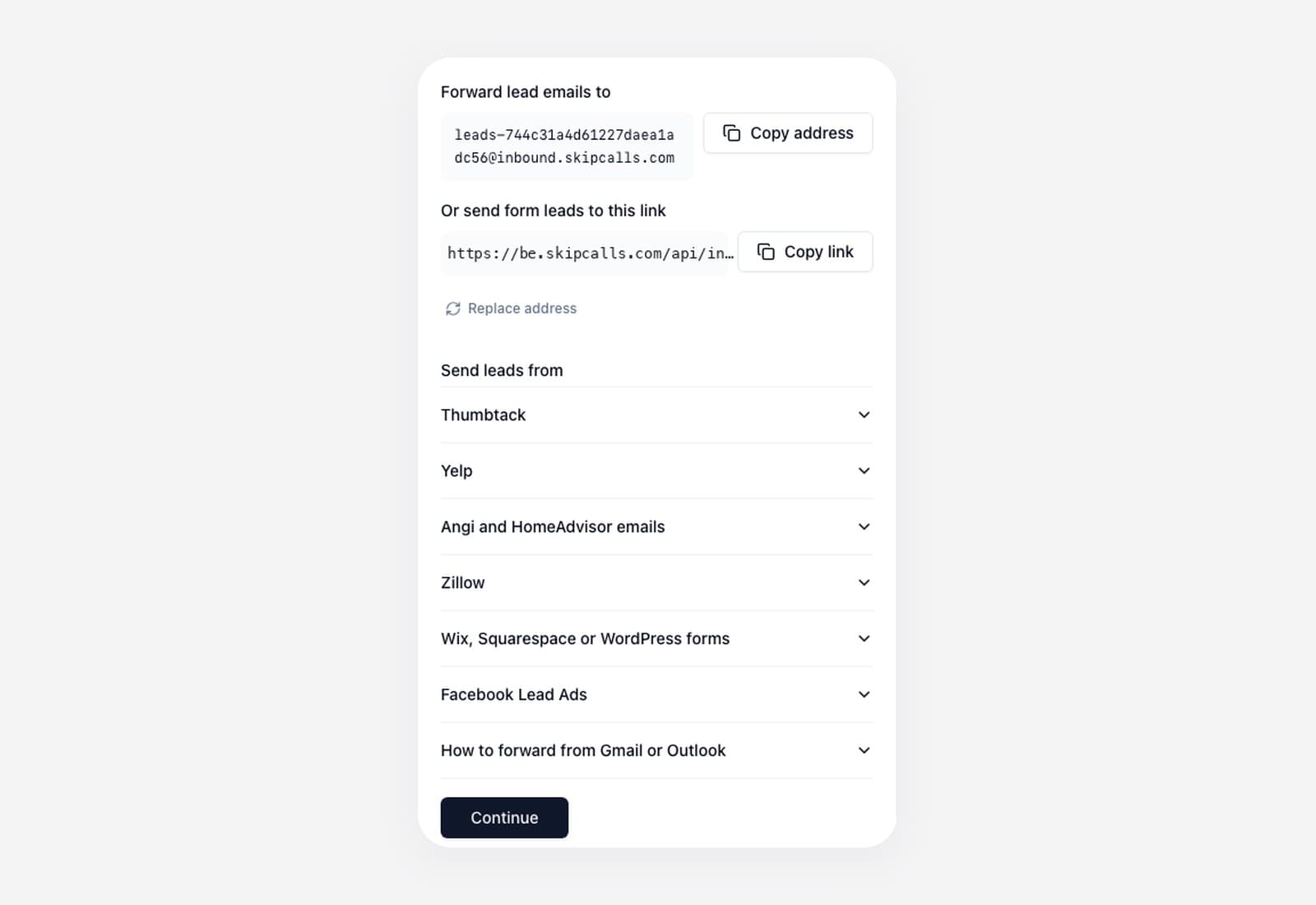
In SkipCalls you get one lead address. Forward these emails there:
- website form notifications from Wix, Squarespace, WordPress forms, Jotform or Typeform (keep a phone field on the form)
- Angi and HomeAdvisor lead emails
- Google Local Services message leads
- Houzz Live Connections leads
- Networx leads
Your receptionist reads each email and pulls out the name, phone, the job and the details. A newsletter or a receipt is not a lead, so nothing happens with it.
Angi works even better through the separate Angi Leads integration. Angi then sends the lead to us the moment it's created, without waiting for an email. More about it on our Angi leads page.
Thumbtack: connect its webhook, not the email
Thumbtack's notification emails don't include the customer's phone number. Most show only their initials. Forwarding them doesn't help.
Thumbtack does send the full lead, with the customer's Thumbtack number, through its own webhook. Open the Thumbtack Leads integration in SkipCalls, copy the link, and in Thumbtack add it under Settings, Webhooks.
One more step. A Thumbtack number only takes texts and calls from numbers registered on your Thumbtack account. Add your receptionist's SkipCalls number in Thumbtack under Settings, Registered phone numbers. Without it your receptionist's texts don't reach the customer.
Yelp and Facebook Lead Ads: through Zapier
Yelp emails don't include the customer's phone either. Facebook Lead Ads doesn't email the lead at all. Both go through Zapier to your lead link (a webhook):
- In Zapier, start a Zap with "Facebook Lead Ads, New Lead" or with Yelp Leads.
- Add "Webhooks by Zapier", POST, paste your lead link, and send name, phone and email.
Yelp shares a phone number only when the customer chooses to. When there's no number, there's nothing to text.
What happens when a lead comes in
Here is the order of events for one lead:
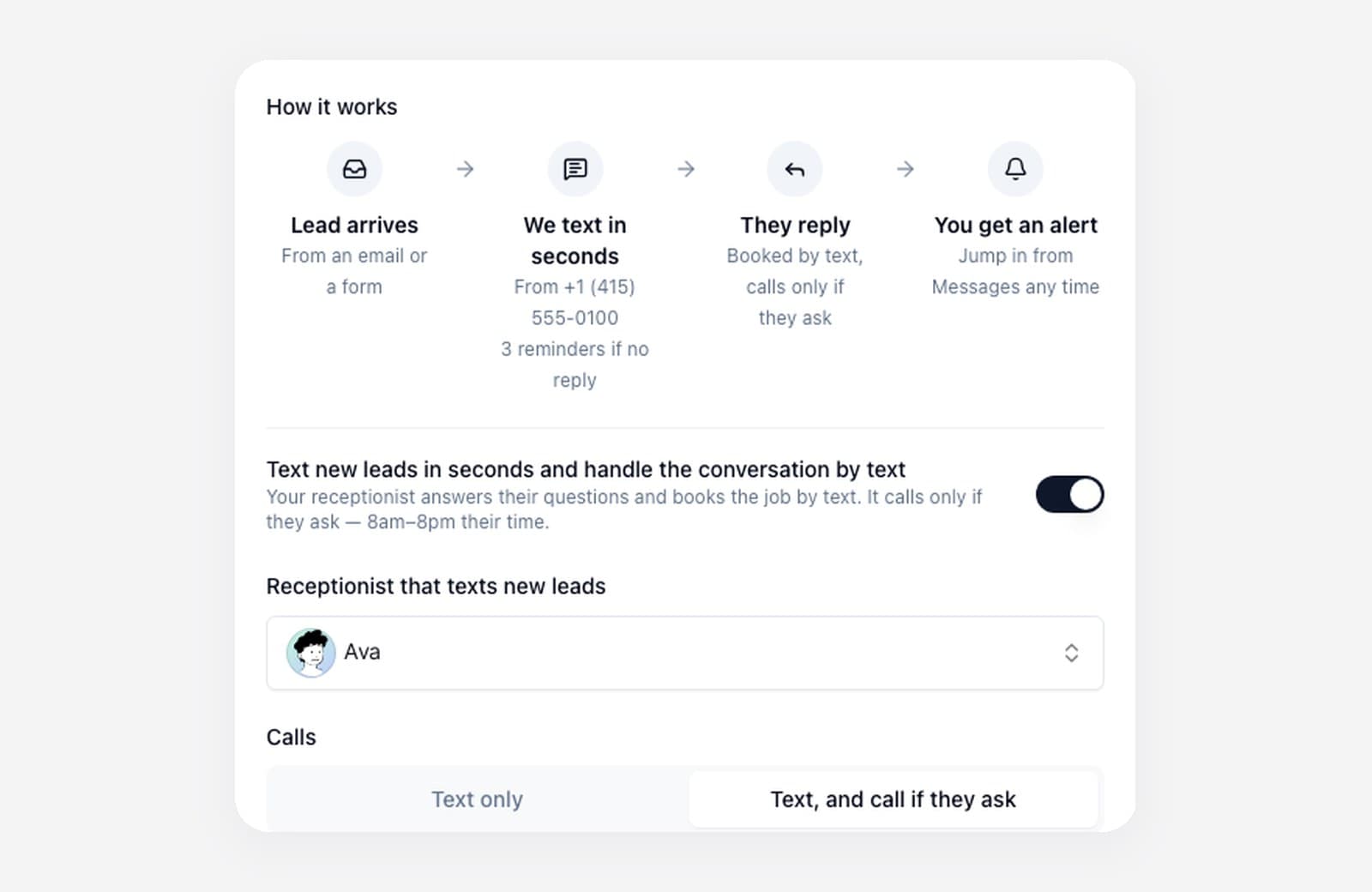
- The lead arrives: an email at your lead address, or a webhook from Angi, Thumbtack or Zapier.
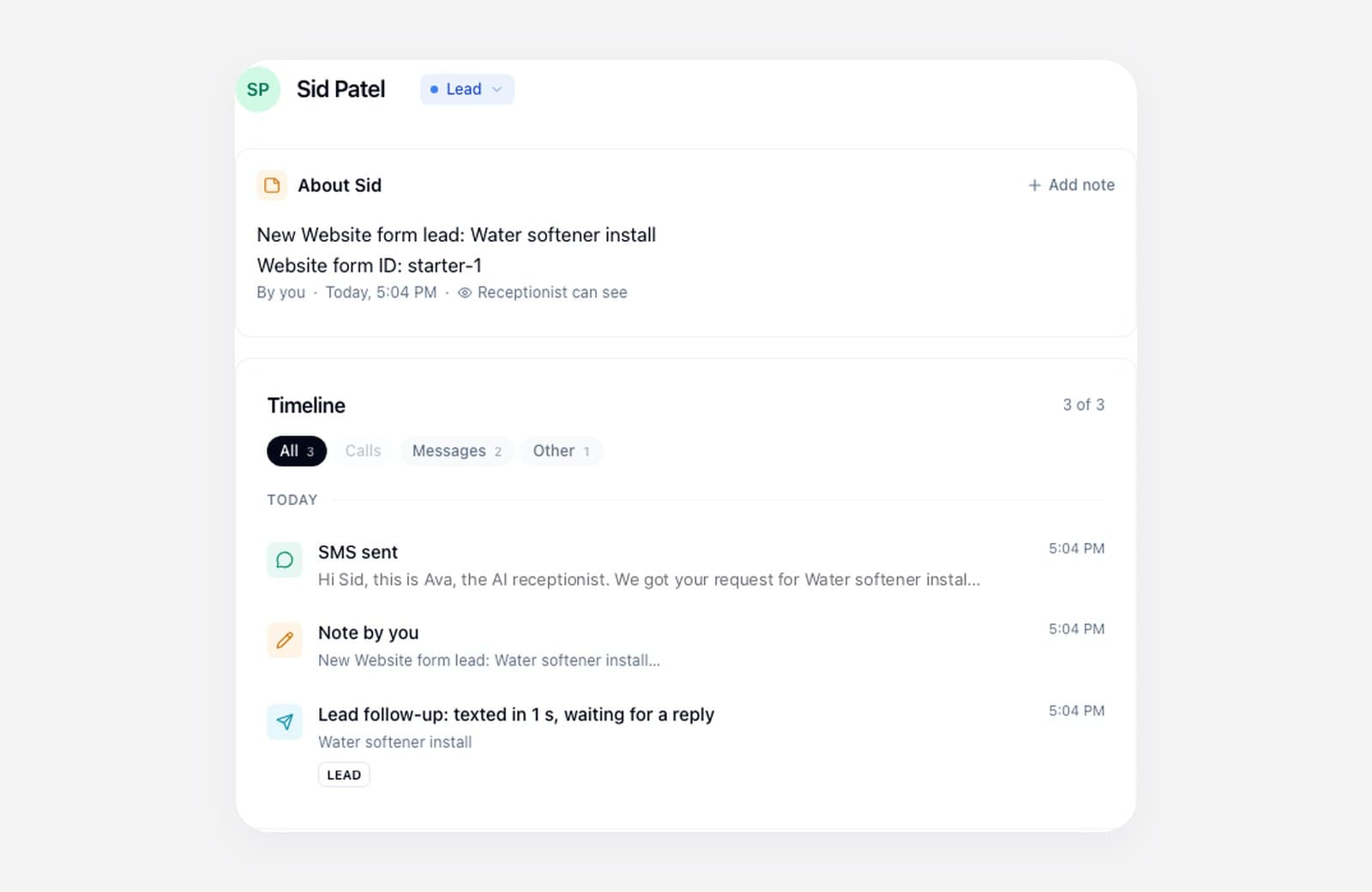
- The lead is saved to your Customers with the source as a tag, and a note with the job and details.
- Your receptionist texts the lead from your SkipCalls number. The first text says who it is, which business, and which request it's about.
- You get a push and an email: who the lead is, what they want, and how fast the text went out.
- When the lead replies, your receptionist answers their questions and books the job by text. If your calendar is connected, it books a real free time.
The default first text looks like this:
Hi Jordan, this is Ava, the AI receptionist at Lone Star Plumbing, about your water heater repair request on Thumbtack. Text me what you need and when works for you, or reply CALL if you'd rather talk.
A line about replying STOP is added at the end automatically.
Texts first, calls only when they ask
We started with "call every lead right away" and changed it. A lot of people who fill out a quote form don't pick up unknown numbers, and many prefer to just text. A call they didn't ask for is also where the complaints and legal problems come from.
So text is the main channel. The receptionist calls only when the lead asks for it ("call me", "call me at 3"), and only between 8am and 8pm in the lead's time zone. If you want no calls at all, pick "SMS only".
Timing works the same way for the first text. A lead that arrives at 11pm gets the first text at 8am their time, not in the middle of the night.
Reminders if they go quiet
If the lead doesn't reply, the receptionist sends up to three short reminders: two hours later, the next morning, and on day three. Then it stops and marks the lead "No reply". You can set reminders to anything from 0 to 3.
Reminders stop as soon as the lead replies, books, texts STOP, or you send a message yourself.
You can jump in any time
The whole conversation is in Messages, on the web and in the app. Write to the lead yourself and the receptionist steps back. Good for the big jobs you want to price personally.
On the lead's page in Customers you see a status line: texted, replied, call scheduled, called, opted out, or no reply.
How to set it up on the web
Setup is on the web dashboard. It takes a few minutes.
- Open Integrations and pick the Leads filter.
- Open Lead emails & forms and copy your lead address (or the lead link for Zapier). For Thumbtack, open Thumbtack Leads instead and follow its steps.
- In Gmail or Outlook, make a rule that forwards emails from the lead source to that address. Gmail: Settings, Forwarding, Add a forwarding address, then a filter for the sender with "Forward it". Outlook: Settings, Rules, Add new rule, the sender as the condition, forward as the action.
- Gmail first emails a confirmation link to the new address. It arrives in Messages in SkipCalls, so you can confirm the forwarding right there.
- Click Continue to "Choose what happens". Turn on texting new leads, pick the receptionist, choose "SMS only" or "SMS + call", and check the box that these leads asked your business to contact them.
- In the last step, send a test lead. A sample lead shows up in Customers marked "(test)", so you can see exactly what gets saved.
Tell your receptionist what to ask
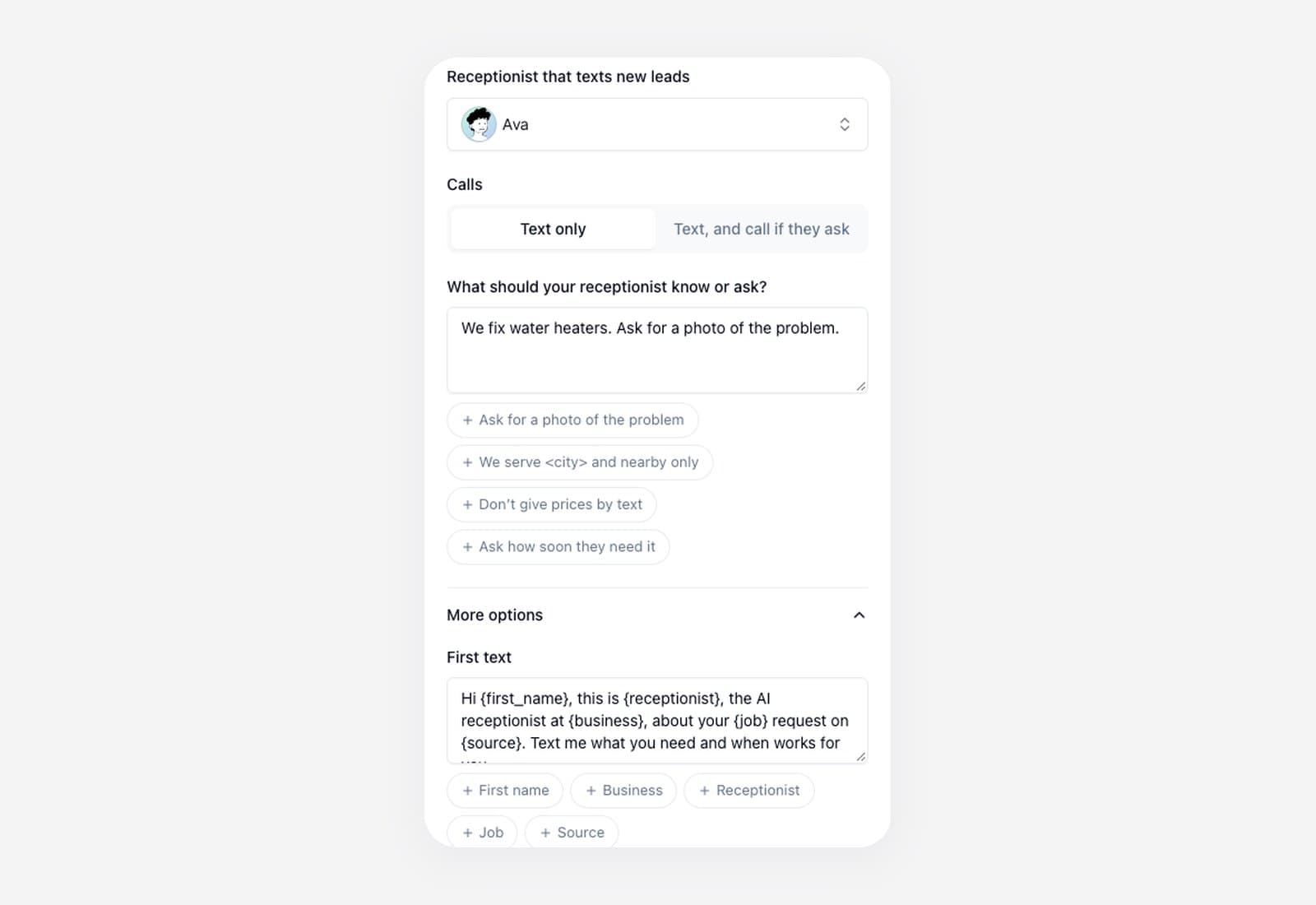
Under "What should your receptionist know or ask?" write a few lines in your own words, up to 1,000 characters. For example:
- "Ask for a photo of the problem."
- "We serve Austin and nearby only."
- "Don't give prices by text."
- "Ask how soon they need it."
Under More options you can rewrite the first text with placeholders for the lead's first name, your business, the receptionist's name, the job and the source. There's a live preview, and a reset button if you want the default back.
Which plans include it
Automatic texts to new leads are part of PRO and higher. See current plans.
On Starter, lead emails still work: each lead is saved to Customers and you get the alert, so nothing gets lost. You just reply yourself.
What to expect
Not every lead replies. People ask several pros at once, and when someone else answered first, the rest go quiet. That's normal. Being first with a clear text is what moves the number.
Some things make a big difference:
- A real name and your business name. The first text uses both. A text that says who you are gets answered more.
- A natural voice, for the leads who ask for a call. Pick a premium voice in your receptionist's voice settings.
- Calendar connected and Business Profile filled in (prices, service area), so the receptionist can answer questions and offer real times.
- A test lead first, before you connect your real lead sources.
If you want the bigger picture on why the first few minutes matter, read The 5-Minute Rule and The One-Shot Lead.
Frequently asked questions
How do I respond to Thumbtack leads faster?
Connect Thumbtack's webhook to the Thumbtack Leads integration in SkipCalls, and add your receptionist's number to Registered phone numbers in Thumbtack. Your receptionist then texts each new lead within seconds. Thumbtack's emails won't work for this: they don't include the customer's phone.
Can I auto-reply to Angi leads?
Yes. Connect the Angi Leads integration so Angi sends each lead straight to SkipCalls, or forward Angi and HomeAdvisor lead emails to your lead address. Either way your receptionist texts the lead right away and handles the conversation.
Does it work with Yelp leads?
Yes, through Zapier, and only when the customer shares a phone number with you on Yelp. Yelp's emails don't include it.
Will the AI call my leads?
Only if the lead asks for a call, and only between 8am and 8pm their time. Choose SMS only and it never calls.
What if a lead texts STOP?
The receptionist stops texting that person and cancels any call it had scheduled. The lead is marked "Opted out".
Try it on your next lead
Set up the lead address, send yourself a test lead, then forward one platform's emails. Start with the one you spend the most on.
Questions about a lead source that isn't listed here? Email [email protected] and we will help you set it up.