Instant Quotes From Your Own Prices: Answer “How Much?” on Every Call
Tell SkipCalls how you charge, in your own words. When a caller asks how much, a ready quote with the math and a text for the customer waits on their card. Or let your receptionist give the price on the call and in text replies.

 Reviewed by Nikita Podelenko, Founder & Engineer of SkipCalls
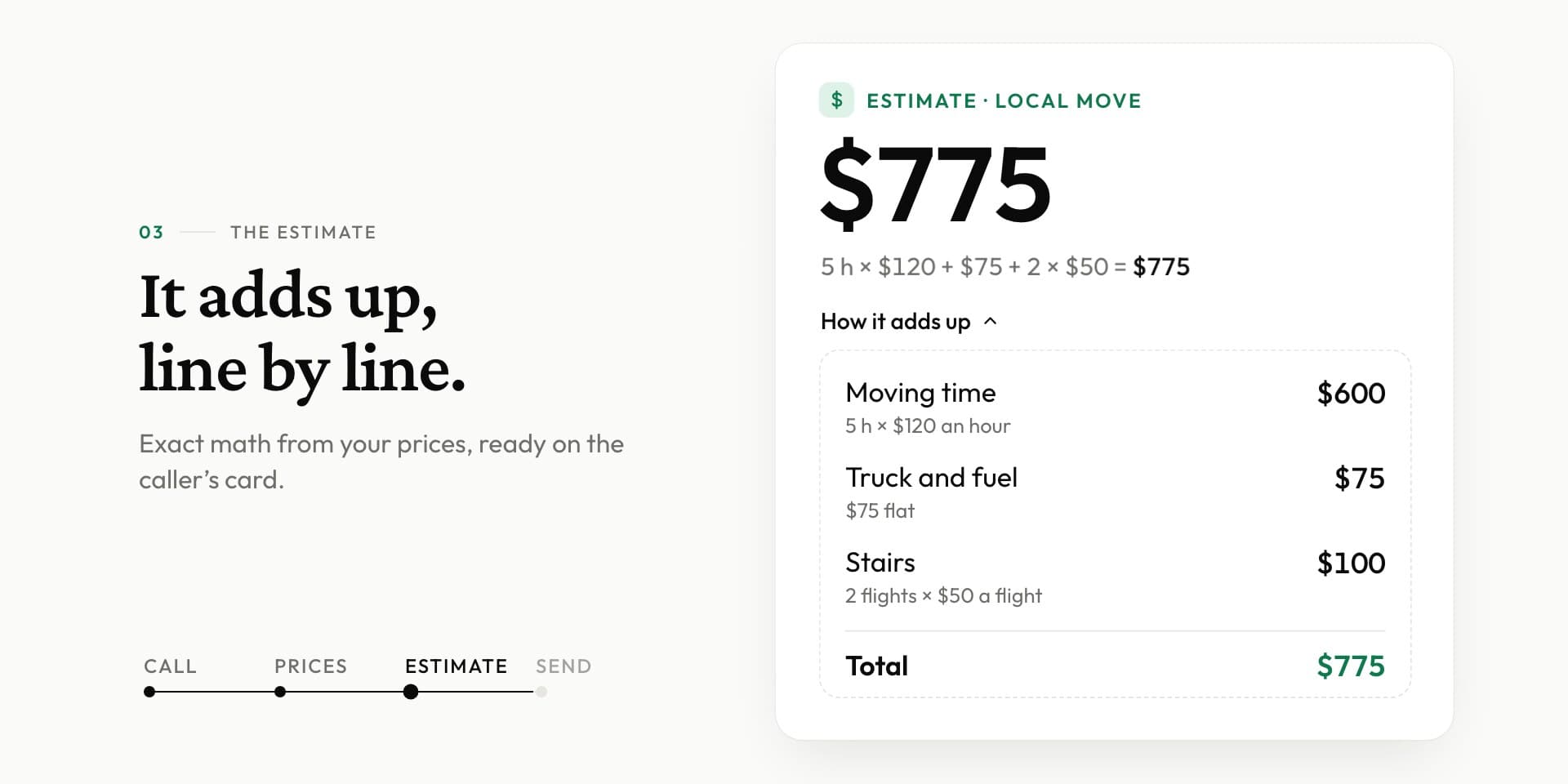
Table of contents
“How much for a two-bedroom move?” “What do you charge for a leak?” It's the question every service business hears, and it usually comes while you're on a roof, under a sink, or carrying a couch.
Your receptionist already takes the call and writes down the details. Then the caller waits for you to work out a number and text it back. The longer the quote follow-up takes, the more likely they have already called the next company on the list.
Estimates closes that gap. Tell SkipCalls how you charge once. When a caller asks how much, an instant quote from your own prices is ready: the total, how it adds up, and a text for the customer. You check it and tap Send. If you want, your receptionist can also give the price right on the call.
A ready quote on the caller's card
Here's what changes after a “how much?” call:
- Your receptionist takes the call as usual and notes what the caller said: the job, the size, the extras.
- SkipCalls reads your prices, the ones you typed, said, or uploaded, and picks the job that fits.
- The quote adds itself up. Every line comes from your prices, with the math shown: 5 hours × $120 + $75 truck + 2 flights × $50 = $775. The total is calculated, never guessed.
- You decide. The text to the customer is ready. Send it as is, or edit it first. Nothing goes out without you.
Not every call has all the facts. The card handles that too:
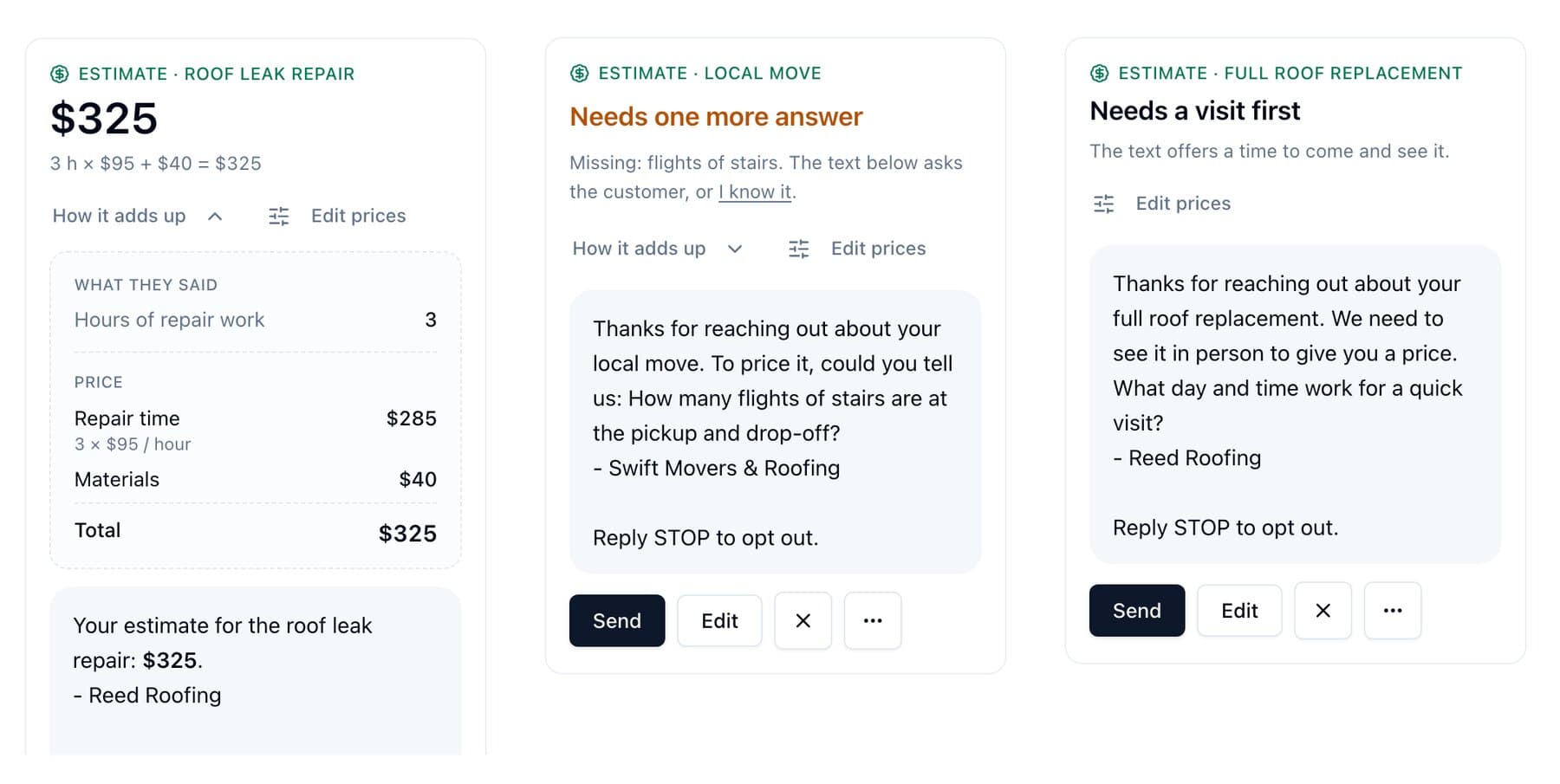
- A detail is missing? It asks one question, like how many flights of stairs. Send that question to the customer, or fill it in yourself.
- The job needs a visit? It says so and drafts a text offering to come and see it.
- You don't price that job yet? The card tells you, with a shortcut to add a price.
Need something more formal? Download the quote as a PDF from the card's menu.
Let your receptionist give the price on the call
Some businesses want the caller to hear a number before they hang up. On the Estimates page, turn on Quote from these prices on calls and texts. Your receptionist then works out the price from your list during the call, and does the same when a customer asks by text.
It uses the same prices and the same math as the card, so the number the caller hears matches the one you would send. If a detail is missing, it asks for it. If a job needs a visit, or isn't on your list, it says you'll get back to them instead of making up a number.
The switch is off until you turn it on. Prefer to stay in the loop on every price? Leave it off, and the quote waits on the card for you. If you'd rather not discuss price on the phone at all, here's how to handle “how much?” calls without quoting.
Tell it how you charge, the way you'd tell a new hire
There's no price table to fill in. Open Estimates in the SkipCalls app (Settings → Estimates) or on the web at app.skipcalls.com (Automations → Estimates, also the Estimates tab in Business Profile) and describe your prices in plain words:
“Local moves are $120 an hour for 2 guys and a truck. A two-bedroom takes about 5 hours. Truck and fuel is $75. Stairs are $50 a flight.”
Type it, dictate it, or attach the price list you already have (a photo, a screenshot, a Word, Excel or text file; in the app you can also snap the price sheet with your camera). Then save your prices.
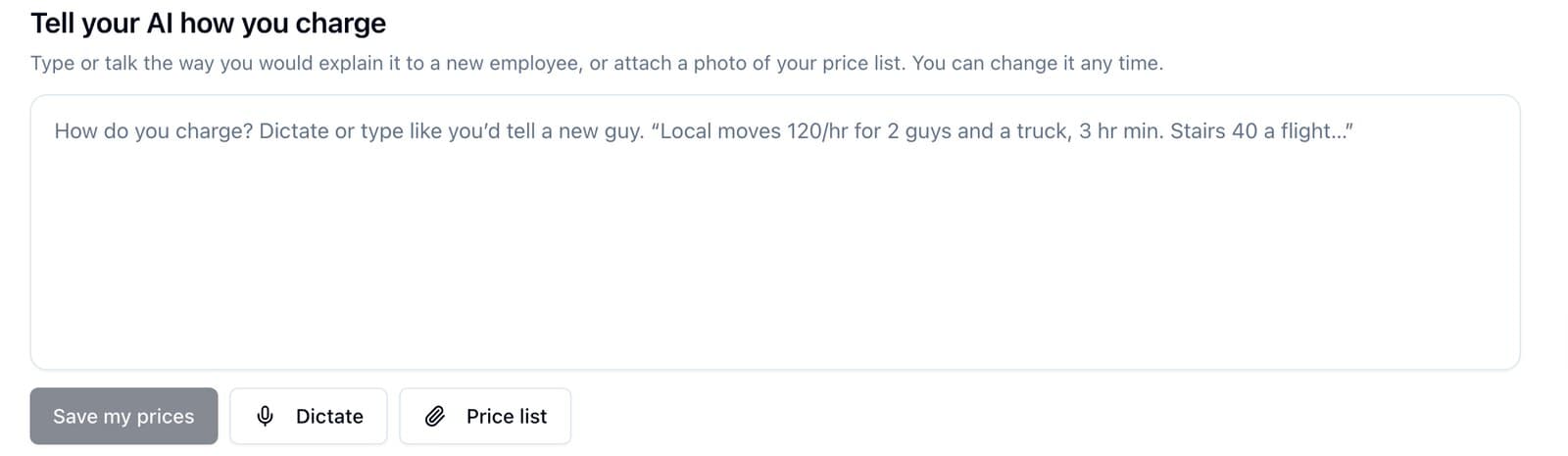
SkipCalls turns your words into a clean list, one row per price. If it had to guess something, it asks you to confirm or fix it.
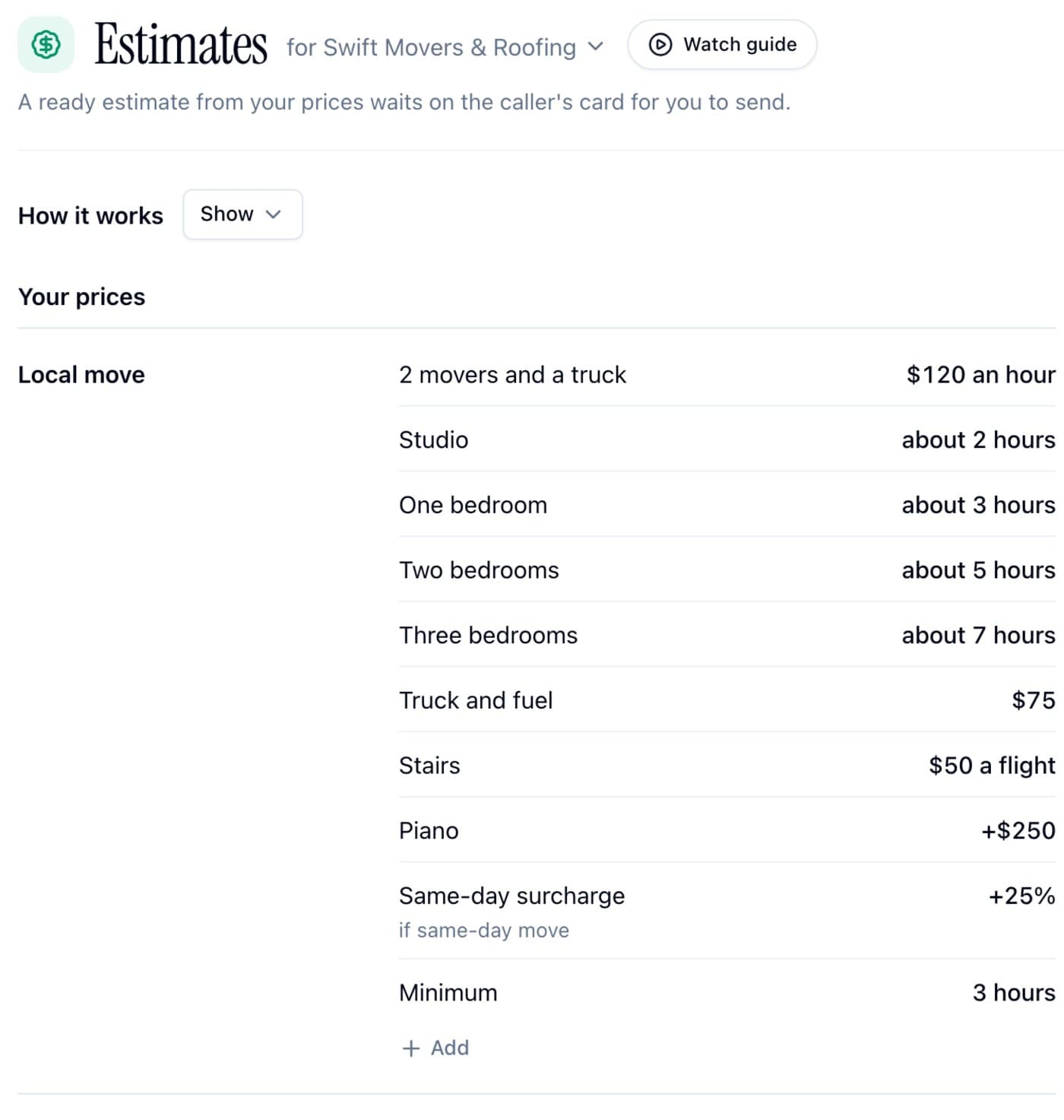
How to set up instant quotes
On the web
- Sign in at app.skipcalls.com and open Automations → Estimates.
- Type, dictate, or attach how you charge, then click Save my prices.
- Check the rows. Click any price to change it; Undo is right there.
- Use Try it: type what a caller might say and click Check. You'll see the exact quote it would make. Nothing is sent or saved.
- Optional: turn on Quote from these prices on calls and texts if you want your receptionist to give prices itself.
In the app
- Open the SkipCalls app and go to Settings → Estimates.
- Tell your receptionist how you charge: type it, dictate it, or add a photo or file of your price list.
- Check the prices, then try a sample question with Try it.
- Optional: turn on the switch that lets your receptionist quote prices on calls and texts.
The quote shows up on the caller's card in Needs you, in the app and on the web, with the same Send and Edit buttons.
That's it. The next caller who asks how much gets a ready quote in Needs you.
Prices changed? Update the row. Open quotes you haven't edited or sent yet are worked out again with the new price. Want a break? The Estimates switch at the top turns it off, and your prices stay saved.
Prefer to watch? The Estimates video guide walks through setup and a real card in under two minutes. The AI quoting overview has the short version.
A few ways owners use it
- Movers: hourly rate by crew size, hours by home size, stairs and heavy items as extras.
- Contractors and handymen: a call-out fee plus per-hour labor, with jobs like full roof replacements set to “visit first”.
- Auto shops: common jobs at a flat price, with parts and labor as separate lines.
- Lawn and cleaning: price by yard or home size, with a minimum charge.
Who gets Estimates
Estimates is included with Pro and higher, in the app and on the web. Your receptionist keeps working the same way without it. Estimates only adds a ready price to calls and texts where someone asks how much. See current plans.
FAQ
Can my AI receptionist give price quotes over the phone?
Yes, if you turn it on. The Quote from these prices on calls and texts switch lets your receptionist give the price from your list during the call and in text replies. It's off by default; then the quote waits on the caller's card for you to send.
What is AI quoting software for a small business?
It turns a customer's “how much?” into a quote without you doing the math. With SkipCalls, you describe your prices once, and every price call ends with a quote from those prices, the math, and a text ready to send.
What if the caller doesn't give enough details for a price?
The card asks one question, for example how many flights of stairs. You can send that question to the customer or answer it yourself, and the quote updates.
Can I change a quote before it goes out?
Yes. Edit the text, or change the price itself if it's wrong. You can also dismiss the quote and reply your own way.
Do I have to type every price in a special format?
No. Write it the way you'd explain it to a new employee, say it out loud, or attach a photo or file of the price list you already use.
Try it on your next “how much?” call
Open Automations → Estimates, tell it how you charge, and check one example with Try it. It takes a few minutes, and the next price question already has an answer waiting.