Answer on Your Own Phone: Ring Your Cell First, Let Your AI Receptionist Catch the Rest
A new SkipCalls setting rings up to four of your phones when a customer calls your SkipCalls number. The first phone to answer takes the call. If nobody picks up, your AI receptionist answers.
Most calls to your business are fine for your receptionist. A few are not. The long-time customer who wants to talk to you. The supplier who needs a quick yes. The job that is easier to close with a real voice.
Some owners asked for a different order: ring my phone first, and let the receptionist step in only if I can't pick up.
Use it when you want one business number to ring you and your teammates before your receptionist answers. If you already forward missed or busy calls straight to AI and that works for you, keep that setup. You do not need another ringing step.
Watch the 2-minute setup video to see how the phones ring together and how to turn it on. Keeping your current number? The video also explains how it works with call forwarding.
Your phones ring first, your receptionist catches the rest
Turn on Answer on your own phone for a SkipCalls number, and every call to that number rings your phones first. Add up to four: yours, a partner's, a dispatcher's, a teammate's.
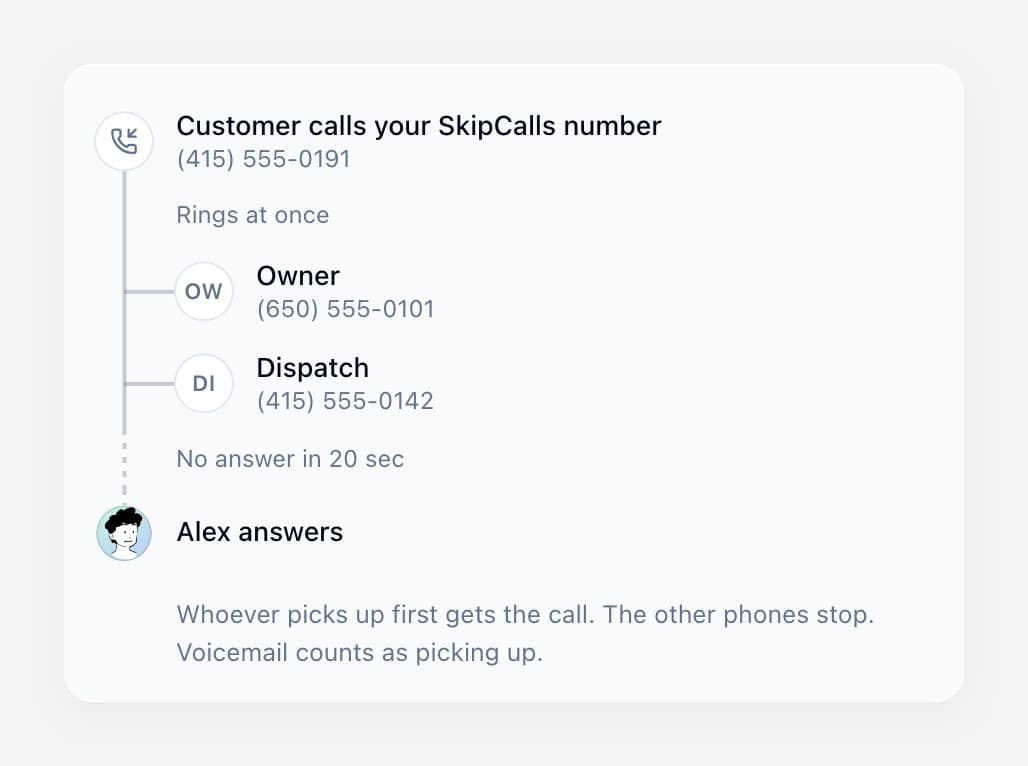
Here is how a call goes:
- All available phones ring at the same time. The order in your list does not matter.
- The first phone to answer takes the call. The other phones stop ringing.
- If nobody answers in time, your AI receptionist answers. Same receptionist, same greeting, same message-taking as always.
Callers dial the same SkipCalls number as before.
What counts as "answering"
Voicemail counts. If your mobile voicemail picks up before you do, the call lands in your voicemail, not with your receptionist. So choose a ring time shorter than the time your voicemail takes to answer. The settings screen reminds you of this.
Keep the business number your customers already know
You do not have to give customers a new number. First forward calls from your existing business number to your SkipCalls number, then turn on Answer on your own phone for that SkipCalls number. Your carrier’s forwarding stays in place.
The call goes from your business number to SkipCalls, then rings the phones you added. Your receptionist answers if nobody picks up. Add the mobile or office phones that should receive the call, not the business line that is forwarding back to SkipCalls.
Our call-forwarding video shows how to set up the first part.
Forward all calls for less waiting
With all-call forwarding, your carrier sends the call to SkipCalls without first waiting for your original business phone to ring. SkipCalls then rings the selected phones. Carrier connection time still applies.
With missed-call forwarding, the caller waits on the original line first, then waits for the phones in SkipCalls. For example, 10 seconds on your business line plus 20 seconds of routing is about 30 seconds before AI answers, plus connection time. Some callers will hang up during that wait.
For less waiting, forward all calls or shorten the ringing times where your carrier allows it. If you want AI to answer immediately after a missed call is forwarded, leave Answer on your own phone off.
Choose who rings, and when
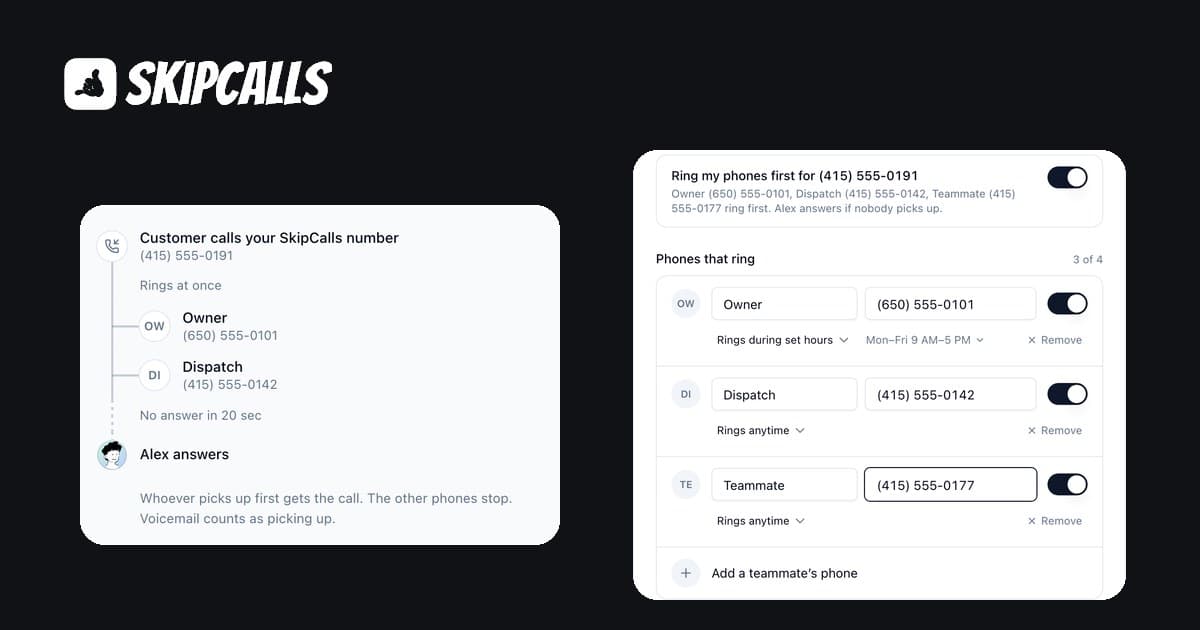
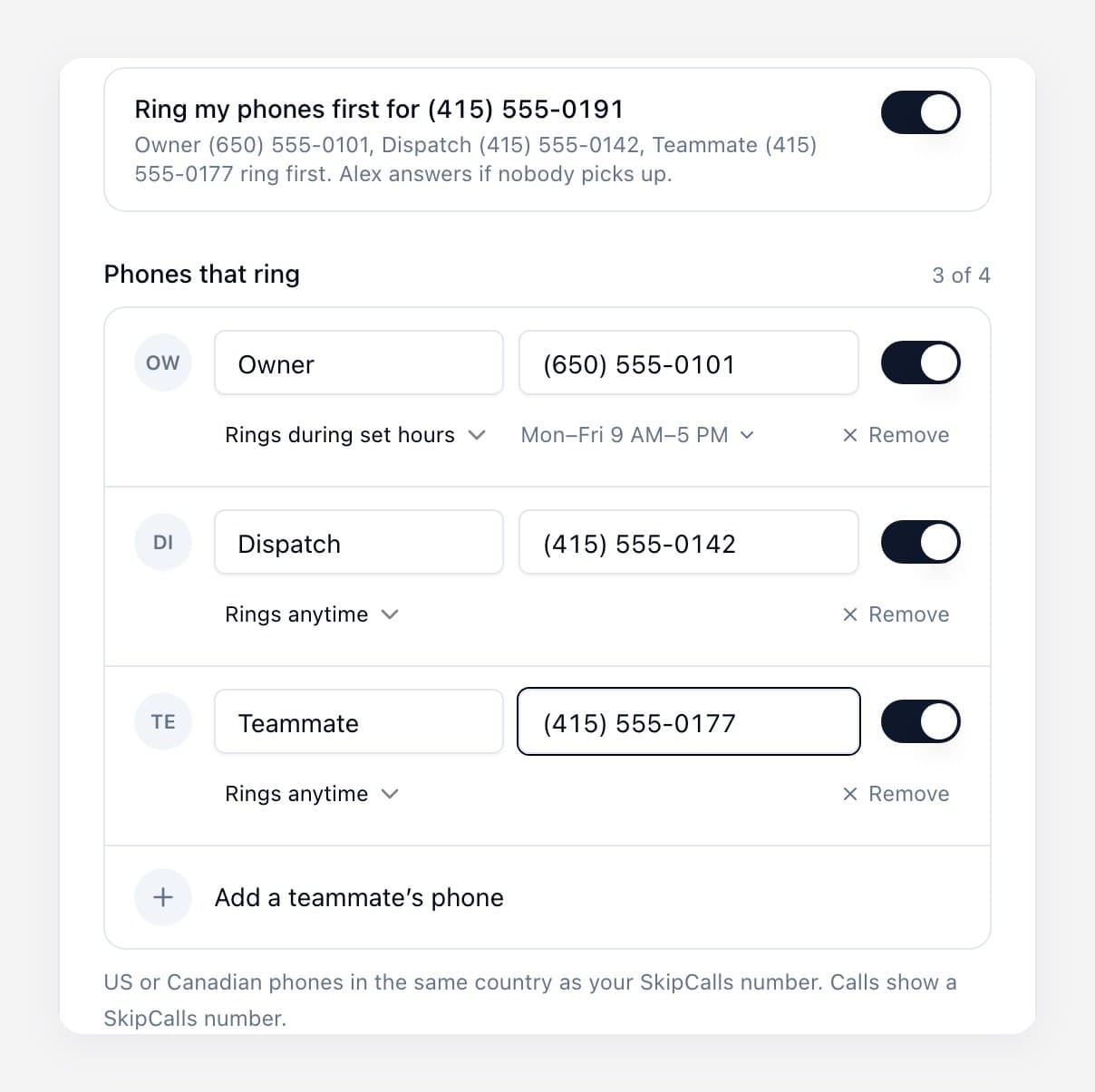
Each phone has its own name, number, and on/off switch, plus its own schedule:
- Rings anytime, or
- Rings during set hours, which starts at Monday to Friday, 9 AM to 5 PM. Open it to change the days and times.
Set the timezone once for the whole number. A phone that is off or outside its hours is skipped. If no phone is available when a call comes in, the call goes straight to your receptionist.
The switch next to a phone pauses just that phone without deleting it. The main Ring my phones first switch turns the whole thing off and keeps your phones and hours saved for later.
How long should the phones ring?
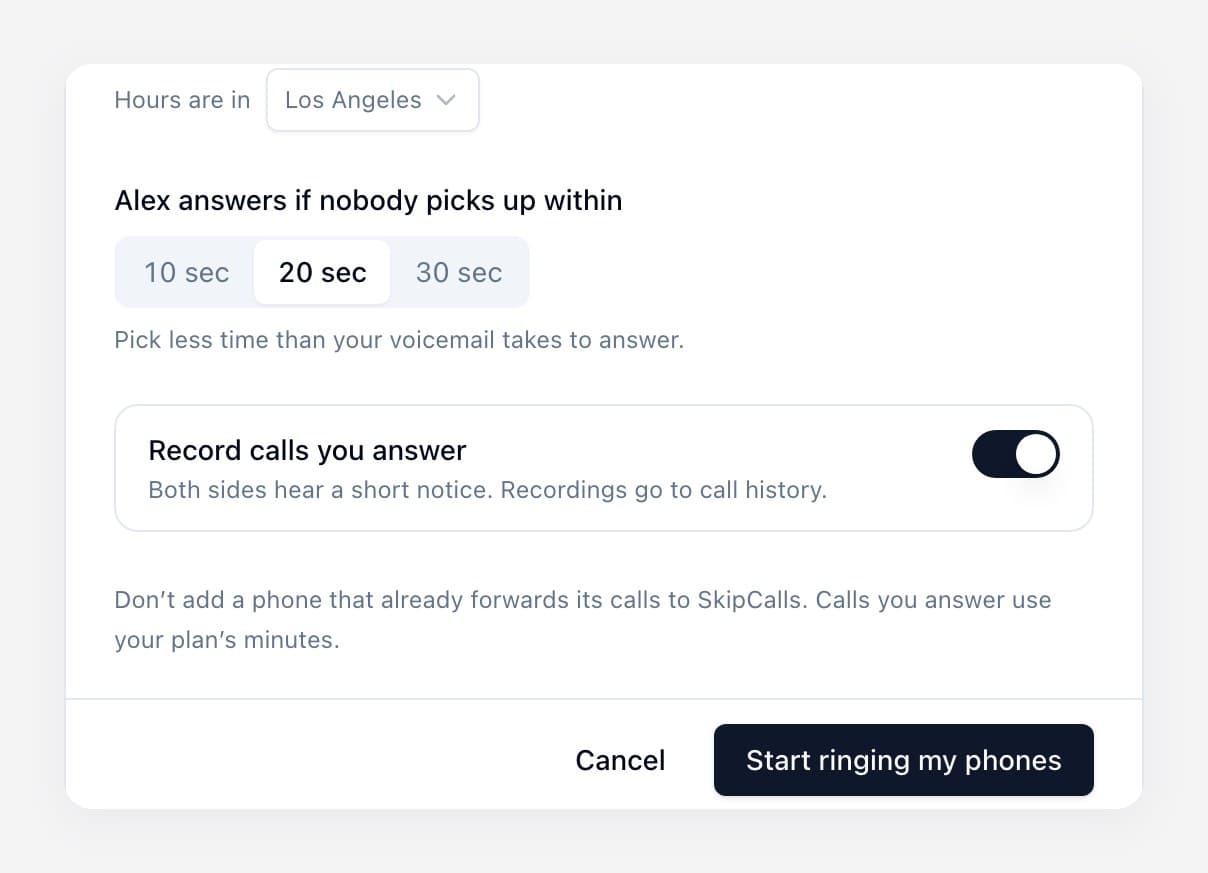
Pick 10, 20, or 30 seconds. The default is 20 seconds, which is long enough to find your phone and short enough that a caller doesn't feel stuck. If your carrier's voicemail picks up quickly, choose 10 seconds.
Record the calls you answer
Record calls you answer is a setting on the number. When it is on, both people hear a short notice before they are connected, and the recording goes to your call history. If a caller or recipient declines where consent is asked for, the call goes on without a recording.
How to set up Answer on your own phone on the web
Setup is on the web dashboard. You need Pro or higher.
- Open the web dashboard and go to Phone Numbers (under Tools & Setup).
- Choose Call setup beside your SkipCalls number. Under Ring your phones before your receptionist, choose Set up my phones.
- Under Phones that ring, add each person's name and phone number. US and Canadian numbers can be typed in the usual local format.
- For each phone, choose Rings anytime or Rings during set hours, and check the timezone next to Hours are in.
- Choose how long to ring before your receptionist answers: 10, 20, or 30 seconds.
- Turn Record calls you answer on or off.
- Choose Start ringing my phones. When you edit a setup that is already on, the button says Save.
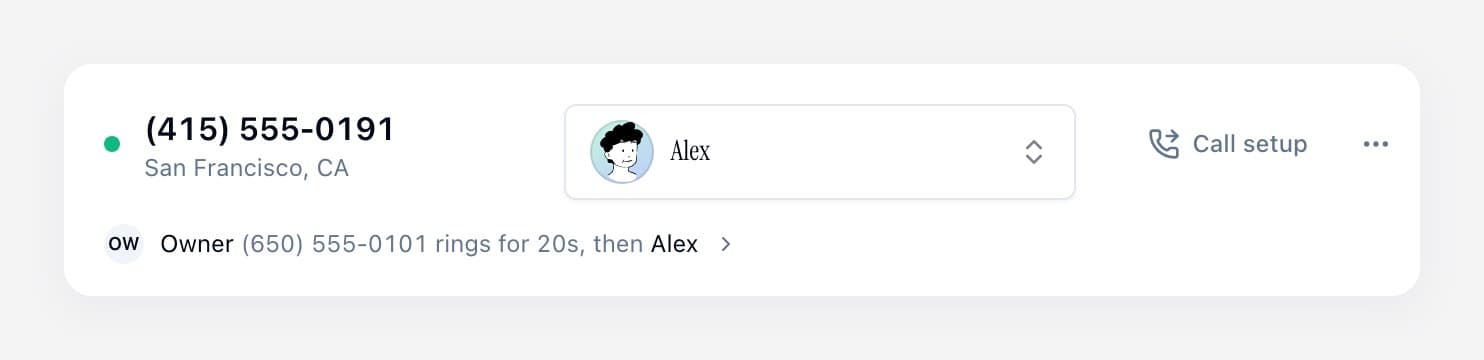
Once it is on, a line under your number on Phone Numbers shows who rings first and for how long. Select it any time to edit.
During setup, choose whether customers will call your existing business number or your SkipCalls number. Ringing your phones first is a separate, optional setting on the SkipCalls number. Changing how calls reach SkipCalls does not switch this setting off.
See who answered in your call history
Every routed call shows who it connected to and what happened to each phone: Answered, Stopped ringing once someone else picked up, or Sent to AI without ringing phones when no phone was available.
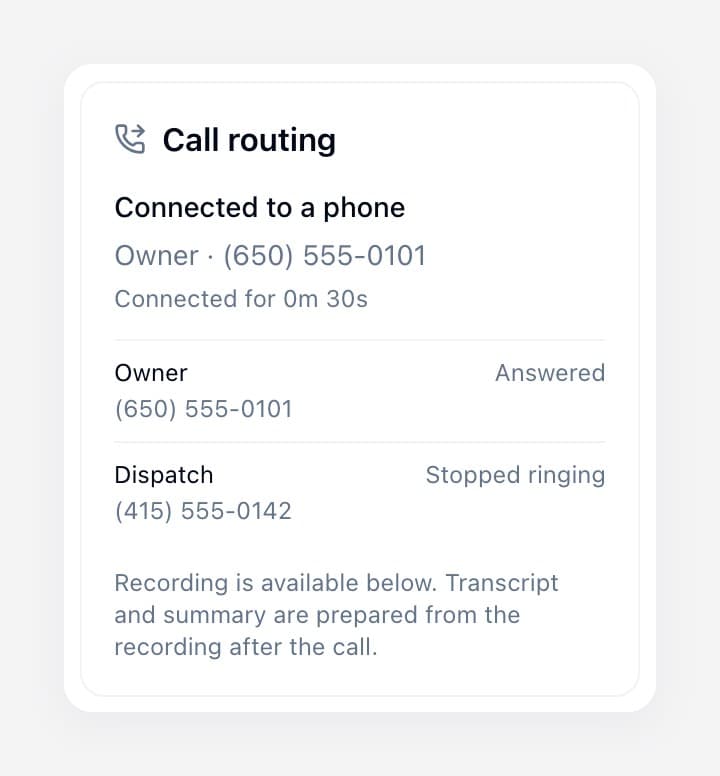
When recording is on, the call keeps its audio. Unless call summaries and transcripts are turned off for your account, a written summary and a transcript that names the caller and the person who answered are added after the call. When recording is off, there is no recording, no transcript, and no summary of what was said, only the routing result.
What to know before you turn it on
- Same-country numbers only. The phones you add must be ordinary US or Canadian mobile or landline numbers in the same country as your SkipCalls number. Calling between the US and Canada counts as international and isn't supported. Toll-free, premium, and other service numbers can't be used, and neither can another SkipCalls number.
- Don't add a phone that forwards its calls back to SkipCalls. That can send the call in a circle. If a phone forwards unanswered calls, choose a ring time shorter than its carrier's forwarding delay. That does not help with calls forwarded the moment the phone is busy or forwarded every time. If you can't avoid that, remove the phone from the list.
- Caller ID. The phones show a SkipCalls number, not the caller's number. Your call history shows who actually called.
- Minutes. Calls you answer can use your plan's minutes. Ringing and the recording notice count toward the call.
- Already forwarding your business line to SkipCalls? All-call forwarding skips the first ringing wait. Missed-call forwarding adds your original line’s wait to the time your selected phones ring.
Which plans include it
Answer on your own phone is part of Pro or higher. It is off by default, so nothing changes for you until you turn it on. Starter accounts see the Pro requirement before the setup screen opens.
Frequently asked questions
Can I make my AI receptionist ring my cell phone before it answers?
Yes. Turn on Answer on your own phone for your SkipCalls number and add your cell. Calls ring your phone first, and your receptionist answers only if you don't pick up in time.
Can customers keep calling my current business number?
Yes. Forward that number to SkipCalls, then turn on Answer on your own phone for the receiving SkipCalls number. Forward all calls to avoid a separate ringing wait on the original line, or keep missed-call forwarding and allow for both waits. Do not add a phone that forwards the call straight back to SkipCalls.
Does it ring all my phones at once?
Yes. Every available phone rings together, and the first one to answer takes the call. The others stop ringing.
What happens if my voicemail answers first?
Your voicemail counts as an answer, so the call stays there. Choose a ring time shorter than your voicemail takes to pick up, such as 10 seconds, if you want your receptionist to take over instead.
How many phones can I add?
Up to four per number. Each has its own switch and its own hours.
Can I set different hours for different people?
Yes. Each phone is either Rings anytime or Rings during set hours, with its own days and times. Outside those hours, that phone doesn't ring.
Are the calls I answer recorded?
Only if you leave Record calls you answer on. Both people hear a short notice first. Recorded calls get a summary and transcript in your call history unless those are turned off for your account. With recording off, no recording, transcript, or summary of the conversation is created.
Try it today
Start with one number and one phone, yours. Leave the ring time at 20 seconds and make a test call from a different phone. If your voicemail answers before your receptionist does, drop the ring time to 10 seconds.
Questions about setting it up? Email [email protected] and we will reply.