Skip AI and Skills: Let Family Bypass Your AI Receptionist and Script Your Tricky Calls
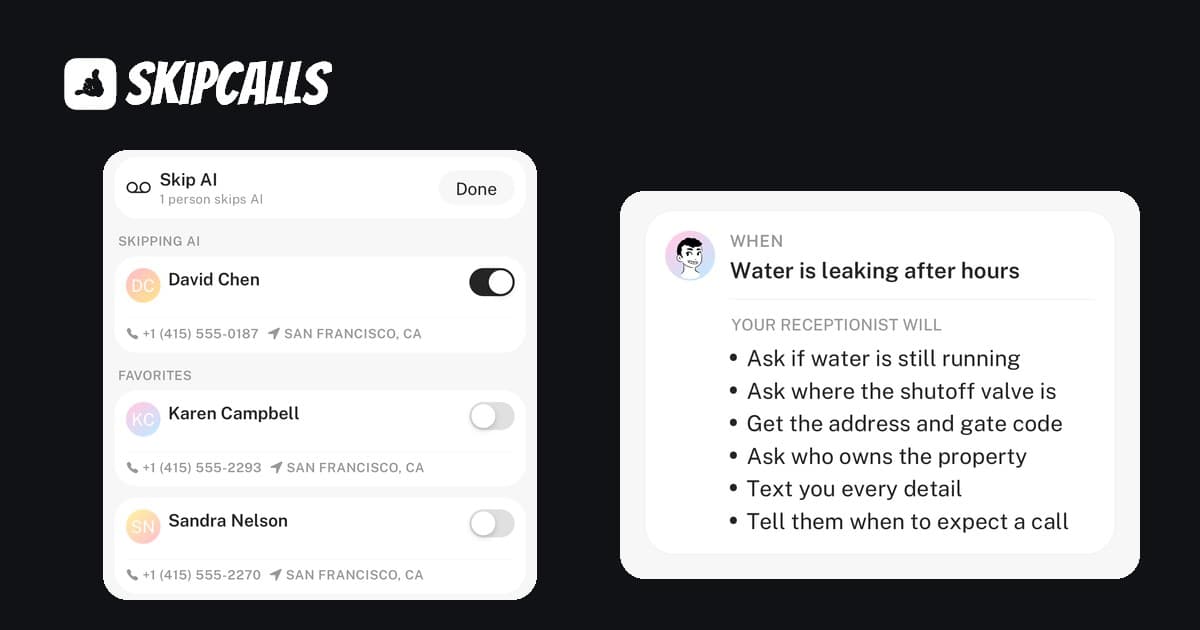
Two new SkipCalls features. Skip AI sends family and friends straight to your voicemail instead of the AI receptionist. Skills teach your receptionist step-by-step call flows for leaks, quotes, and reschedules.
A lot of SkipCalls owners forward their personal cell number to their AI receptionist. It makes sense: customers already have that number. But it means your partner, your mom, and your best friend reach the receptionist too.
The other thing owners keep asking for: "Most calls are easy, but a few need exact questions in an exact order. Can the receptionist follow my steps?"
This update answers both:
- Skip AI: the people you choose skip the receptionist and go straight to your voicemail.
- Skills: your own step-by-step playbook for the calls that need more than a message.
Your receptionist works fine without either one. Set them up only if they fit how you work.
Skip AI: family and friends get your voicemail, not the receptionist
Turn on Skip AI for a contact, and their calls never reach the AI. They hear your greeting, leave a message after the beep, and you get a notification with the message written out and the recording saved.
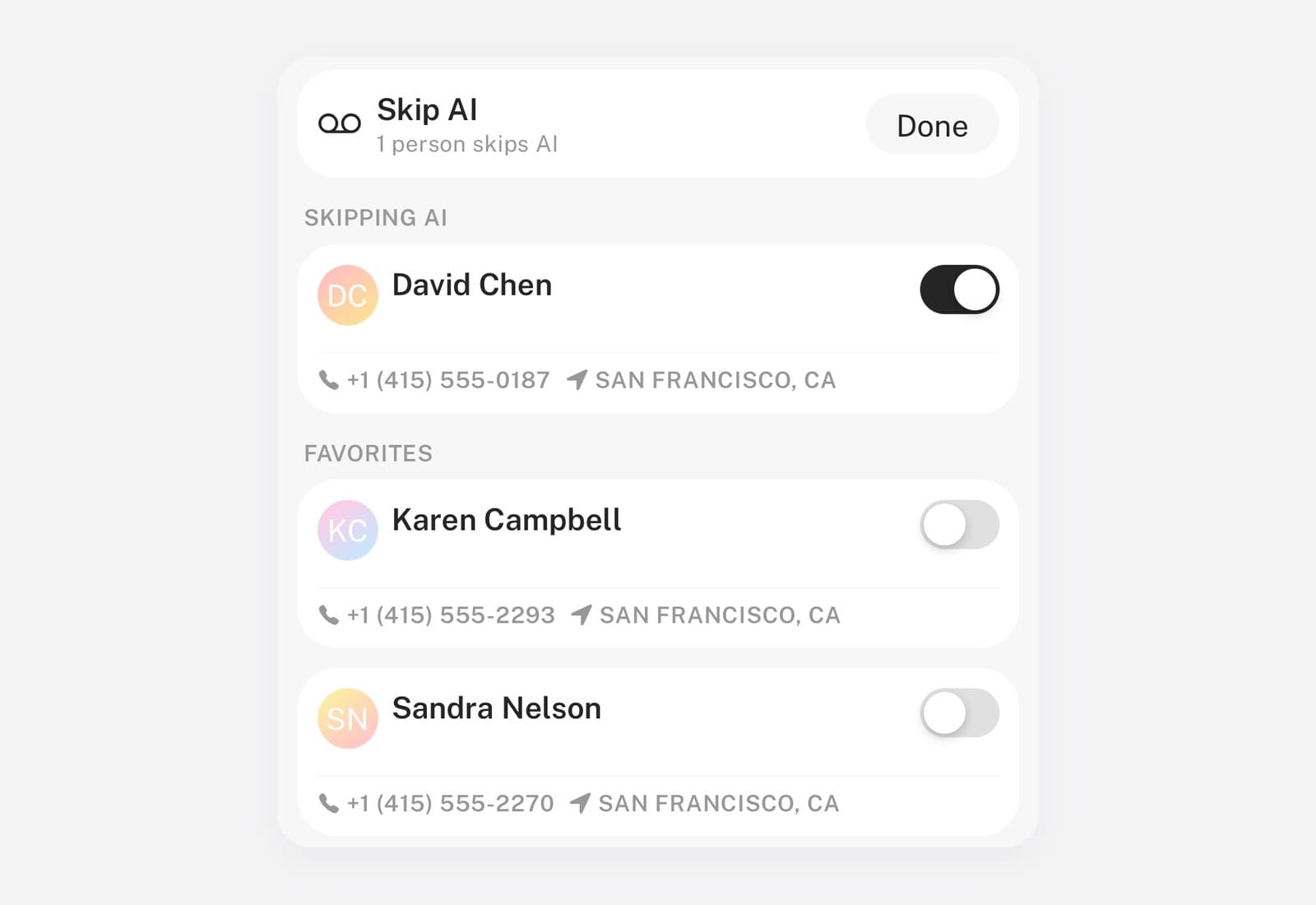
How to set up Skip AI in the app
- Open Customers and tap Skip AI for family & friends.
- Turn on the switch next to each person. People who called you recently are listed first.
- Choose a greeting: record it in your own voice, type it and pick a voice, or keep the default one.
You can also flip the switch from any contact's page. If you already closed the card in Customers, find it under Receptionist Settings → Advanced Settings → Family & Friends → Skip AI.
How to set up Skip AI on the web
Open your receptionist in the web dashboard and go to the Skip AI tab. Add people from your recent callers or search your contacts, and set the greeting there. In Customers you can also use the Skip AI action on any row and filter the list to everyone who Skips AI.
Send every saved phone contact to voicemail
Don't want to pick people one by one? Turn on All phone contacts on the Skip AI screen. Every contact synced from your phone skips the AI.
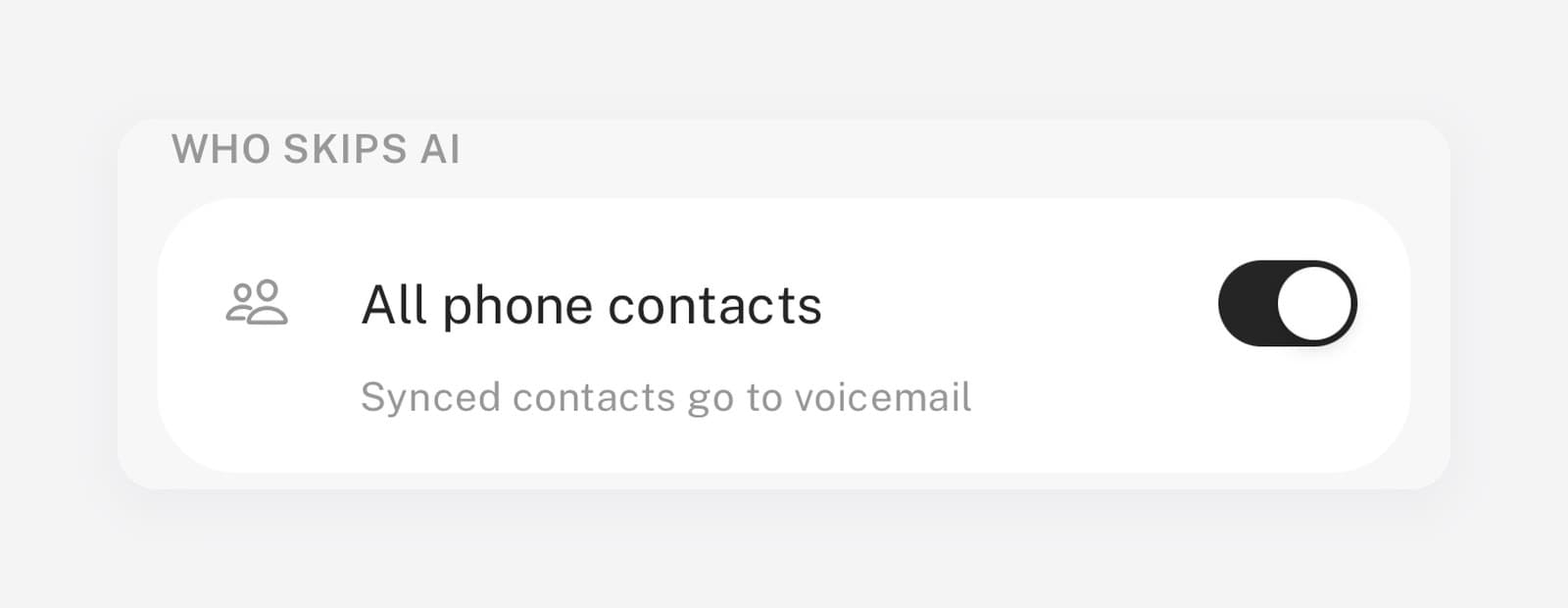
Contacts your receptionist saved after calls are not included, and neither are contacts added on the web or imported. New customers still reach the receptionist, so you don't lose leads.
What Skip AI costs
Nothing extra. Skip AI works on every plan, and these calls don't use your minutes.
It matches callers by phone number. If your brother calls from a number that isn't in your contacts, the receptionist answers as usual.
Skills: your own steps for the calls that need more than a message
Most calls are simple: who is calling, what they need, and a number to call back. Some are not. A leak after hours. A new job that needs a quote. A customer who wants to move next week's visit. Those calls need specific questions in a specific order, and a generic message doesn't cut it.
A skill has two parts:
- When it starts, for example "water is leaking after hours".
- What your receptionist does, step by step.
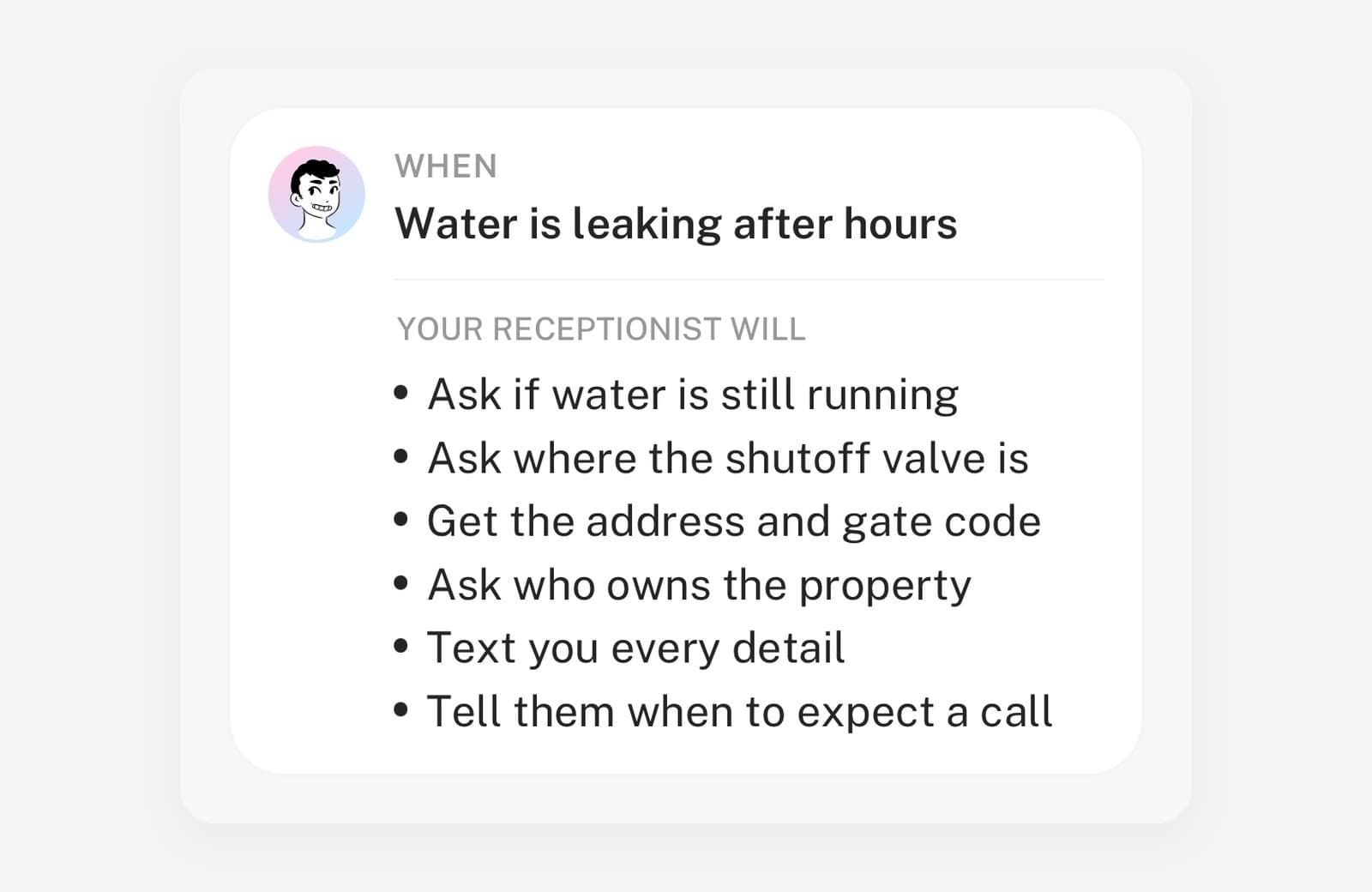
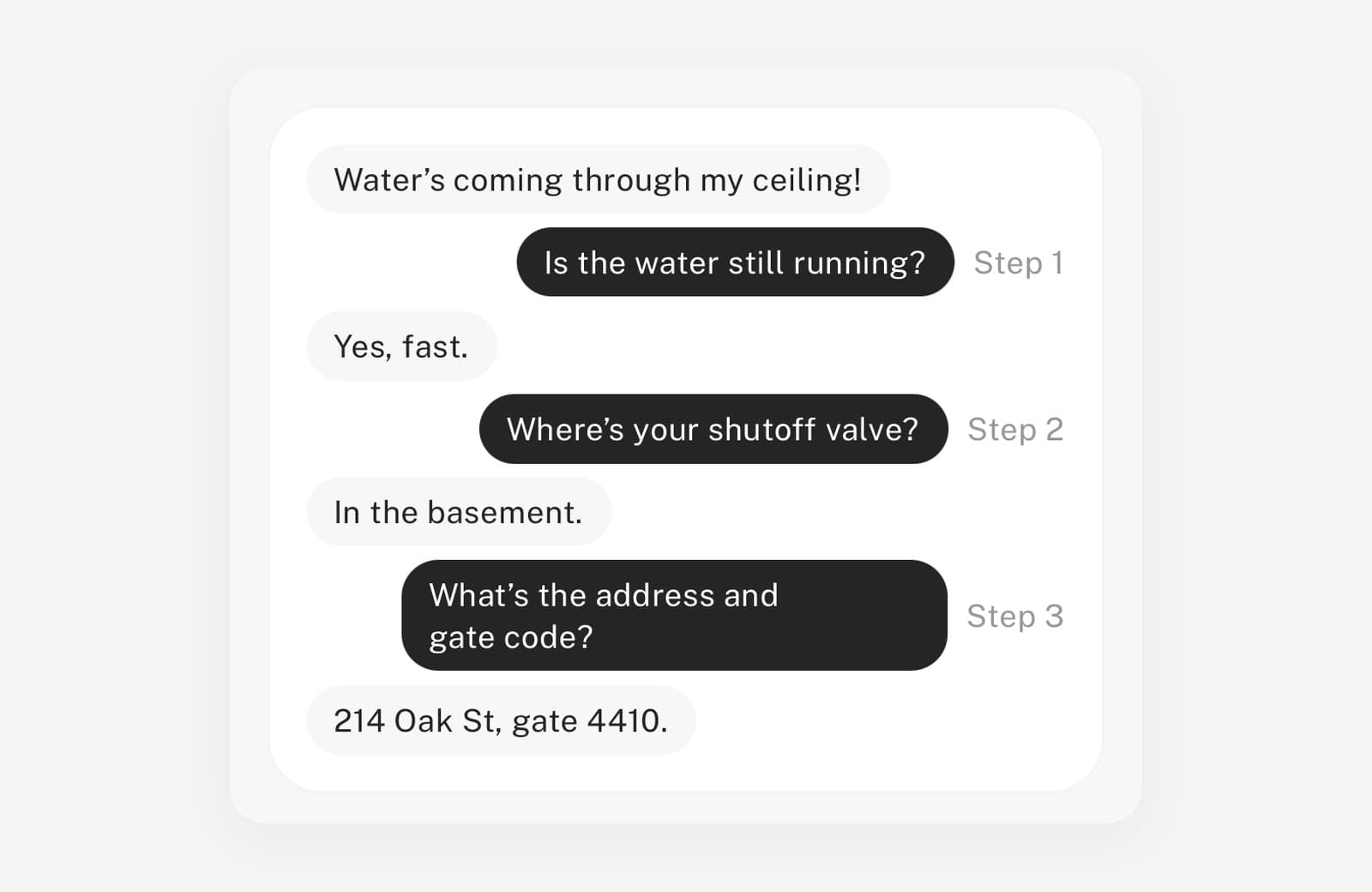
When a call matches, your receptionist follows your steps in order. Every other call works exactly as before. Callers never hear the name of the skill or your notes. They just hear a receptionist who asks the right questions.
Three ways to create a skill
Go to Receptionist Settings → Skills in the app, or the Call Scenarios / Skills section of your receptionist on the web. Then:
- Start from an idea suggested for your type of business.
- Describe the call in your own words, typed or dictated. The assistant asks a few follow-up questions and drafts the steps. Nothing is saved until you approve it.
- Write it yourself if you already know exactly what you want.
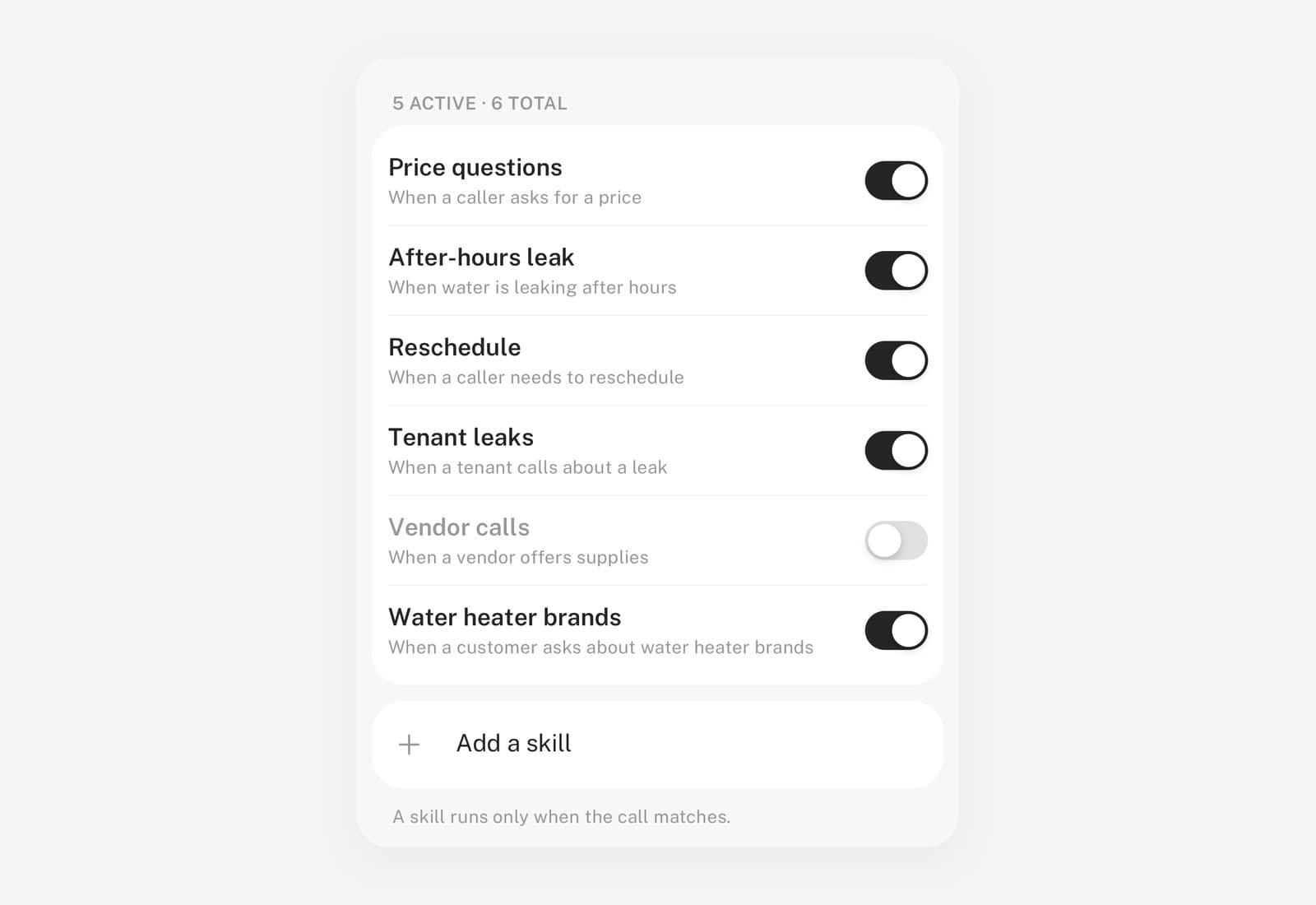
Each skill has its own switch, so you can turn one off for the season without deleting it.
Skill ideas that work well
- After-hours emergency: is it still happening, how bad, address and access, then text you right away.
- Quote request: type of job, size, photos by text, timeline, best time for a site visit.
- Reschedule: which appointment, new preferred days, confirm the change.
- Property manager or tenant call: unit number, who owns the property, permission to enter.
- Vendor or sales call: take the company name and offer, no transfer.
Keep simple facts like your address, hours, and service list in your business profile. Skills are for situations with a process.
Which plans include Skills
Skills are part of PRO in the mobile app and Growth or higher on the web. It is the same list in both places, so a skill you create on your phone shows up in the dashboard too.
Frequently asked questions
Can I use an AI receptionist on my personal phone number without my family talking to it?
Yes. Forward your number to SkipCalls and turn on Skip AI for the people closest to you, or turn on All phone contacts to cover everyone saved in your phone. Their calls go straight to your voicemail greeting.
Do Skip AI calls use my minutes?
No. Skip AI calls don't use minutes, and the feature is available on every plan.
What happens if someone on my Skip AI list calls from a different number?
Skip AI matches by phone number. A call from a number that isn't in your contacts goes to your receptionist as usual.
What is the difference between a skill and my receptionist's instructions?
Instructions shape every call. A skill only runs when a call matches its "when" condition, then your receptionist follows its steps in order. Use skills for situations with a fixed process.
Do I need to update the app?
If you don't see Skip AI or Skills, update SkipCalls from the App Store or Google Play.
Try it today
Pick the two or three people who should never talk to your receptionist, and the one call type your receptionist handles least the way you would. That's ten minutes of setup.
Questions or a call type you're not sure how to set up? Email [email protected] and we will help you set it up.